 Lifein OS
Plugin version: 1.0.4 | Author: iChris007 | For Obsidian ≥ 1.12.7
Publish site: https://lifein.vip/taskflow/
0.1 TaskFlow: Task Management & Action Workbench
TaskFlow is an “action workbench” for the Obsidian Tasks plugin. It does not change any of your existing task-writing or query logic. Instead, it builds a dynamic “Action Space” layer on top of your task list — reorganizing your tasks so that you shift from “managing what needs to be done” to “quickly finding what to do now.”
Through the three dimensions of time, GTD, and context, it lowers the cost of choosing so that actions happen faster. TaskFlow handles presentation and organization; task storage, syntax, and rendering remain entirely the responsibility of the Tasks plugin — you can check off tasks in any view, and TaskFlow writes the change back to the source file.
All you need is typing: no programming, no complex commands to memorize. Every step in this guide is “open Obsidian → click where → type what”; follow along for 15 minutes and you’ll be up and running. Get familiar with the two most common terms first (full definitions in the terms glossary): the Tasks plugin is the underlying engine that truly “stores and displays tasks”; a Tab is a row of buttons at the top of the workbench, each = one Tasks query = one angle to view your tasks.
0.2 The Plugin Interface
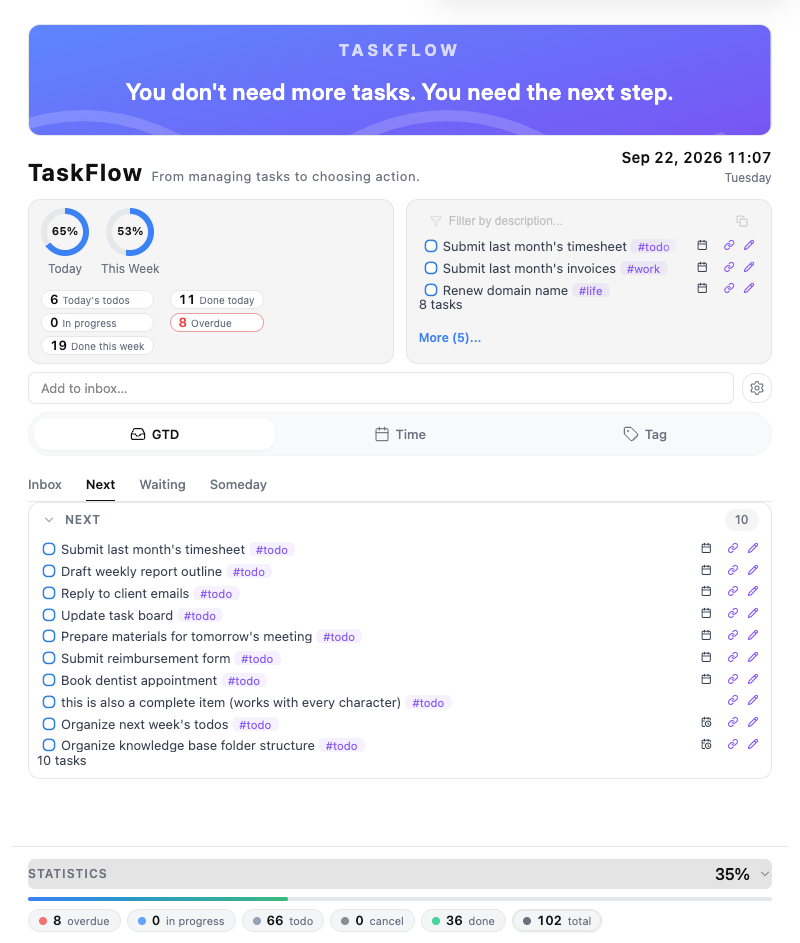
TaskFlow workbench: top banner + quick-add box + Today overview / Important reminders panels + tab bar + bottom statistics.
0.3 Getting Started
0.3.1 Prerequisites
- Installed and enabled Obsidian (version ≥ 1.12.7). If it’s too old, upgrade first (Settings → General → Check for updates).
- Installed and enabled the community plugin Tasks (all TaskFlow tasks are rendered by it; if not installed the workbench is empty):
- Settings → Community plugins → the first time you’ll see “Safe mode is on” → click Turn off Safe mode.
- Click Browse → search
Tasks→ Install → Enable. - (Recommended) Open Tasks’ settings and glance at “Global Filter” just to know where it is.
- Have your own vault.
About the Global Filter: The Tasks plugin’s “Global Filter” decides which notes are treated as task sources. If you set a global filter (e.g.
#task), only tasks inside notes carrying that marker are collected by TaskFlow; if unset, all notes are scanned. This matches Tasks’ official behavior.
0.3.2 Install TaskFlow
- Settings → Community plugins → Browse.
- Search
TaskFlow, find the entry by author iChris007 with the description “An action workbench for Tasks…”. - Click Install, then Enable once done.
- After enabling, a TaskFlow icon appears in the left ribbon.
0.3.3 Open the Workbench
| Method | Action | Note |
|---|---|---|
| Icon | Click the TaskFlow icon in the left ribbon | Most common |
| Command palette | Ctrl/Cmd + P → type taskflow (shows “TaskFlow: Open workbench”) → Enter | Keyboard |
| Default location | Settings → TaskFlow → Global → set “Plugin default open location” to “Main window” or “Right sidebar” | Auto-opens there each time |
When “Right sidebar” is selected, the container narrows and “Today overview” and “Important reminders” automatically stack vertically instead of cramming together.
After opening you’ll see five blocks top to bottom (see Workbench Features):
┌─────────────────────────────────────────────────┐
│ ① Top banner: workbench name + Slogan     Week/Lunar/Clock │
├─────────────────────────────────────────────────┤
│ ② Quick-add box: Add to inbox…   (Enter to add) │
├─────────────────────────────────────────────────┤
│ ③ Panel area: Today overview (left) │ Important reminders (right) │
├─────────────────────────────────────────────────┤
│ ④ Tab bar: Inbox│Next│Waiting│Someday│Overdue│Today… │
├─────────────────────────────────────────────────┤
│ ⑤ Bottom stats bar: Overdue/In progress/Todo/Cancelled/Done/Total │
└─────────────────────────────────────────────────┘
0.3.4 Find Tasks in the Workbench
TaskFlow organizes tasks by perspective into a row of tabs (see Tab Bar). Click any tab and the matching tasks show below — these come from all Tasks tasks in your vault that match that tab’s query (query syntax is configured in Settings). You don’t need to categorize manually; as long as a task is written in a note and follows Tasks syntax, it automatically appears in the corresponding tab.
For example: a task with 📅 2026-09-30 appears simultaneously in multiple tabs like “Today / This month / Work (if it has #work)“.
0.3.5 Add Tasks
Method 1: Workbench quick-add box (fastest “jot it down”)
Follow along:
- Make sure the workbench is open.
- Place the cursor in the
Add to inbox…input box. - Type:
Call mom, then press Enter. - A green “Task added successfully” hint flashes below the input; the box clears.
- Click the Inbox tab → the task you just added appears.
What it actually does: it writes a line
- [ ] Call mominto your “Inbox” file — that’s a standard Tasks task. Which file “Inbox” points to is configurable at Settings → Global → Inbox file path (defaults to the root directory).
Method 2: Write in your notes (recommended for daily use)
Real tasks are best written into your notes, so tasks live alongside your note content and you can add dates, priority, and context tags. In any note, start a new line and write in this format:
- [ ] Task content 📅 due date ⏫ #context tag
Write a small example along:
- Create or open a note (e.g. “Today’s plan”).
- Paste these three lines:
- [ ] Write weekly report 📅 2026-09-30 #work - [ ] Reply to client email ⏫ 📅 2026-09-29 #work - [ ] Work out 📅 2026-09-29 #life - Switch back to the TaskFlow workbench.
- Click tabs in turn to see where the tasks went: click Today / Tomorrow / This month → tasks with the matching date appear; click Work → the two with
#workappear; click Life → the one with#lifeappears; click Overdue → if any task’s date has passed and it isn’t done, it shows here.
Key point: You just write in notes; tabs are merely “filtered views from different angles.” The same task appears in multiple tabs like “This month” and “Work” at the same time.
0.3.6 Complete Tasks
- In a tab’s list, move the mouse over the small box on the left of a task and click to check it off.
- The task becomes “completed”; Tasks automatically records the done date
✅. - The “Today done / This week done” numbers in the panel area +1, and the completion-rate ring moves too.
- The “Done” pill in the bottom stats bar +1, “Todo” -1.
This forms a positive feedback loop: check off one, the numbers look a bit better, and you’re more motivated to do the next.
0.3.7 Reload the Plugin After Config Changes
⚠️ Like many Obsidian plugins: after modifying config in TaskFlow Settings, please turn the plugin off and on again for changes to fully take effect. This reminder is also noted at the top of the settings panel.
To turn off / reopen: Settings → Community plugins → find TaskFlow → toggle the switch off then on.
0.3.8 Limitations & Notes
- Depends on the Tasks plugin: TaskFlow does not store tasks independently; it must be used with Tasks.
- Multi-line list items / numbered lists / tasks in callouts: follow the same rules as the Tasks plugin (see Tasks official docs).
- Built-in tab names follow the language: built-in tabs (Inbox / Today / Work …) auto-switch between Chinese and English with the interface language; your own tabs use the display name you entered.
- Large-vault performance: TaskFlow already optimizes with lazy rendering and layered refresh; if a huge vault still feels sluggish, reduce simultaneously expanded panels or trim custom queries.
0.4 Task Format
TaskFlow is fully compatible with the Tasks plugin’s task syntax — you only need to learn one syntax. Below is the most commonly used subset; for the full syntax please refer to the Tasks official docs.
| Element | Syntax | Example |
|---|---|---|
| Incomplete task | starts with - [ ] | - [ ] Write weekly report |
| Due date | 📅 YYYY-MM-DD | - [ ] Submit report 📅 2026-09-30 |
| High priority | ⏫ (🔼 medium, 🔽 low, ⏬ none) | - [ ] Fix production bug ⏫ 📅 2026-09-29 |
| Context tag | #tag | - [ ] Work out 📅 2026-09-29 #health |
| Completed | - [x] (Tasks auto-adds ✅ date) | - [x] Email sent |
| Recurrence | 🔁 every ... | - [ ] Daily review 🔁 every day |
Quick reference (most common):
- [ ] Plain task
- [ ] With date 📅 2026-09-30
- [ ] High priority ⏫
- [ ] Medium priority 🔼
- [ ] Low priority 🔽
- [ ] Context tag #work
- [ ] Multi-condition combo 📅 2026-09-30 ⏫ #work
- [x] Completed task
Tip: dates support relative forms like
today/tomorrow; for more directives such as priority, scheduled date, start date, created date, and dependencies, see the Editing / Queries chapters of the Tasks official docs.
0.5 Workbench Features
0.5.1 Top Banner
- Left: workbench name (default
TaskFlow) + a Slogan (default “From managing tasks, to choosing action.”). - Right: weekday / lunar date / live clock, auto-refreshes every 30 seconds.
- Background: can hold a cover image (uploaded in settings).
- All three can be customized in Settings.
0.5.2 Panel Area
Two cards at the top of the workbench (toggleable in settings):
- Today overview (left): Today’s todos / Today done / In progress / Overdue / This week done, plus “Today” and “This week” two completion-rate rings.
- Completion-rate basis: completed in period ÷ (completed in period + due-in-period-but-not-done), so “This week” always includes “Today”.
- Important reminders (right): renders “the tasks you should most pay attention to” with a Tasks query. Can sit side-by-side with
Today overview; when Today overview is off it takes the full row.
0.5.3 Tab Bar (11 Built-in Tabs)
TaskFlow ships 11 tabs in three dimension groups, ready to use out of the box (all are ready-made Tasks queries):
GTD action flow (by “how to handle”)
| Tab | What you’ll see | Good for |
|---|---|---|
| Inbox | Un-sorted tasks in the inbox | brain dump, jot first sort later |
| Next | Things you can start right away | first glance when starting work each day |
| Waiting | Tasks waiting on others / external feedback | follow-up, don’t miss “delegated” |
| Someday | Not now, maybe later (Someday) | idea pool, no attention cost |
Time dimension (by “when”)
| Tab | What you’ll see |
|---|---|
| Overdue | Already due but not done (clear first) |
| Today | Due today / related |
| Tomorrow | Due tomorrow / related |
| This week | Due within a week |
| This month | Due within a month |
Context tabs (by “what”)
| Tab | What you’ll see |
|---|---|
| Work | Tasks with the #work tag |
| Life | Tasks with the #life tag |
0.5.4 Bottom Stats Bar
A row of pills: Overdue / In progress / Todo / Cancelled / Done / Total. Click the leftmost “Statistics” row to expand / collapse the detailed categories.
0.6 Settings & Personalization
Enter: Settings → Community plugins → TaskFlow (or click the settings icon next to the TaskFlow icon on the left). Three tabs at top: Global / Groups / About.
Global
- Interface language: Follow system / Chinese / English, switches instantly.
- Workbench name / Slogan: change the big text and phrase on the banner (takes effect on Enter or on blur). To rename, change “Workbench name” to your favorite (e.g. “Uncle Ke’s action desk”), Slogan likewise.
- Show workbench name and date/time / Show banner: control what the banner area displays; if both are off the entire header isn’t rendered.
- Banner image: click “Choose image…” to upload a cover (any jpg/png); hovering the top-right of the banner also lets you change it. If not set, the built-in default banner shows. Image storage follows Obsidian’s “Default attachment folder”, or uniformly falls into the vault-root
_taskflowfolder; changing the image auto-clears the old one. - Plugin default open location: Main window / Right sidebar.
- Inbox file path: the file the quick-add box writes to.
- Panel modules: toggle “Today overview” / “Important reminders”, and edit the “Important reminders query”.
- Bottom stats bar: whether to expand task category details.
Groups
- Manage tabs (Tab) and groups; + Add new Tab for custom views, Add new group to categorize multiple tabs. Each existing tab has edit / delete buttons on the right.
About
- TaskFlow intro, author (Uncle Ke, the Hunter), GitHub repo and more resource links.
0.7 Custom Tabs (Queries)
The essence of TaskFlow is building tabs from your own perspective. Behind each tab is a Tasks query; the syntax is 100% identical to the Tasks plugin.
Walkthrough: build a “This week’s priorities” tab
- Settings → Groups → + Add new Tab.
- Fill in:
- Tab (display name):
This week's priorities - ID:
week-priority(lowercase letters / numbers / hyphens only, cannot be changed after creation) - Tasks query (each line flush left):
not done happens before in 7 days priority is high sort by priority - Icon (optional, e.g.
star), order, owning group.
- Tab (display name):
- Save → turn the plugin off and on again → the “This week’s priorities” tab appears in the tab bar.
Ready-made recipes (copy directly)
| Want to see | Tasks query |
|---|---|
| This week’s key project | not done / happens before in 7 days / #projectA / sort by due |
| Waiting on someone’s reply | not done / tag includes waiting / sort by due |
| Overdue & unhandled | not done / due before today / sort by due |
| Doable today | not done / due on today / sort by priority |
Query syntax is 100% identical to the Tasks plugin; search the Tasks official docs for the full list of directives (e.g.
done,path includes,tags include, etc.).
0.8 Advanced Feature: Enhanced Grouping
Thanks to wernsting’s contribution!
This feature extends TaskFlow’s usage from a “global board” to per-project-note inspection: if you have 10 project notes, select one and you only see its tasks.
Combined with the advanced filter by function (syntax sample), you can also collect tasks linked to this note via the link property or a description double-link.
0.9 FAQ
Q1: The workbench opens but shows no tasks? First confirm the Tasks plugin is installed and enabled; confirm you actually wrote tasks in Tasks syntax and the file is inside the vault; if you set a Tasks global filter, tasks need that marker. Also try tabs other than “Inbox” — empty likely means “genuinely no tasks due today”.
Q2: Changed settings but the UI didn’t change? After changing TaskFlow settings you need to turn the plugin off and on again (see Reload the Plugin After Config Changes).
Q3: Where did the quick-add box content go? It’s written into the “Inbox” file (a default Inbox file, path changeable in settings). Search for that file in your notes to see it.
Q4: The interface is in English, want Chinese? Settings → Global → Interface language select “Chinese”, takes effect immediately.
Q5: Tab name shows differently from what I set / mixed Chinese-English? Built-in tab names (Inbox / Today / Work …) auto-switch with the interface language; your own tabs use the display name you entered. This is normal.
Q6: Can I use TaskFlow without the Tasks plugin? No. All TaskFlow tasks rely on the Tasks plugin for rendering; it’s Tasks’ “front desk”.
0.10 Terms glossary
| Term | Plain words |
|---|---|
| Vault | Your Obsidian note repository |
| Tasks plugin | The underlying task engine, responsible for storing and displaying tasks |
| TaskFlow | The “action workbench” interface built on Tasks |
| Tab | Buttons at the top of the workbench, each = one angle to view tasks |
| Query | A set of rules deciding which tasks a tab shows (Tasks syntax) |
| Inbox | The file the quick-add box writes to, a staging area to jot then sort |
| Global Filter | A setting of Tasks that decides which notes are treated as task sources |
0.11 Further Reading
- Tasks plugin official docs (Introduction)
- Tasks plugin: Getting Started
- Tasks plugin: Queries
- TaskFlow GitHub repo and changelog (see Settings → About)
- More Obsidian productivity practices: https://lifein.vip
Remember that Slogan: You don’t lack tasks, you lack the next step. Open TaskFlow and start from the “next step”.